
FlyOOBE (ex-Flyby11)
Windows Setup Assistant
Flyby11 or FlyOOBE is a free third-party software that was first known as Flyby11 and later renamed FlyOOBE. It bypasses Windows hardware requirements such as TPM and Secure Boot, which block Windows 10 users from upgrading to Windows 11. If your computer works fine on Windows 10 but doesn’t meet the official Windows 11 requirements, Flyby11 helps you upgrade easily by skipping hardware checks.
What is Flyby11?
Flyoobe is a free tool that tricks the Windows 11 installer to bypass security and hardware checks and ignore things like TPM and Secure Boot. You get an in-place upgrade that keeps all your files, apps and settings.
Windows 10 is about to end on October 14, 2025, which means computers with Windows 10 won’t receive any updates. Flyoobe helps you get those updates even after the last date without any hardware checks.
Evolution: Why Flyoobe Exists?

Flyby11 started as a simple tool to help people install Windows 11 on older computers or unsupported hardware that Microsoft considered “not good enough”. But the developer realized that installing Windows was only one problem. Once the installation was completed, people had to deal with unwanted apps and annoying setups from Microsoft.
This idea gave birth to a brand new version: Flyoobe, which basically does two things. One is to help you install on older computers like before. The second thing was to customize Windows during setup by removing junk apps and skipping unnecessary steps.
Why is it called Flyoobe?
The name gives you two ideas:
Fly: Fly as in quick and easy (fly past objects)
OOBE: Out of the box experience (the first setup process that Windows shows you). The name tells you that this tool gives you a smooth, fast set up experience where you are in control.
Flyby11 (Original): The simple original tool just helps you install Windows 11 on older computers. It is still available, but no longer gets updates.
Flyoobe (New): The upgraded version performs all the tasks that the old Flyby11 does but lets you customize Windows set up. This is the version you should use now.
Key Features
Bypasses Hardware Restrictions
Removes Bloatware And Junk
Performs In-Place Upgrades
Disable AI/Copilot Features
Includes Compatibility Checks
Eco-Friendly Computing
Download FlyOOBE & Flyby11
Flyby11 Classic
Flyby11 3.0 (Classic)

- Clean, direct upgrade from Windows 10 to 11
- Bypass hardware checks
FlyOOBE Nightly
FlyOOBE 2.0 (Nightly)

- Real-time activity monitor & logs
- Enhanced high-DPI display support
How to Download Flyoobe / Flyby11?
Follow these steps for the Flyby11 download (Flyoobe) for Windows:
Go to the above section to download Go to Download Section.
You can find the latest version here of Flyoobe or Flyby11.
Click on Download now and download the zip file named FlyOOBE-win-[version].zip.
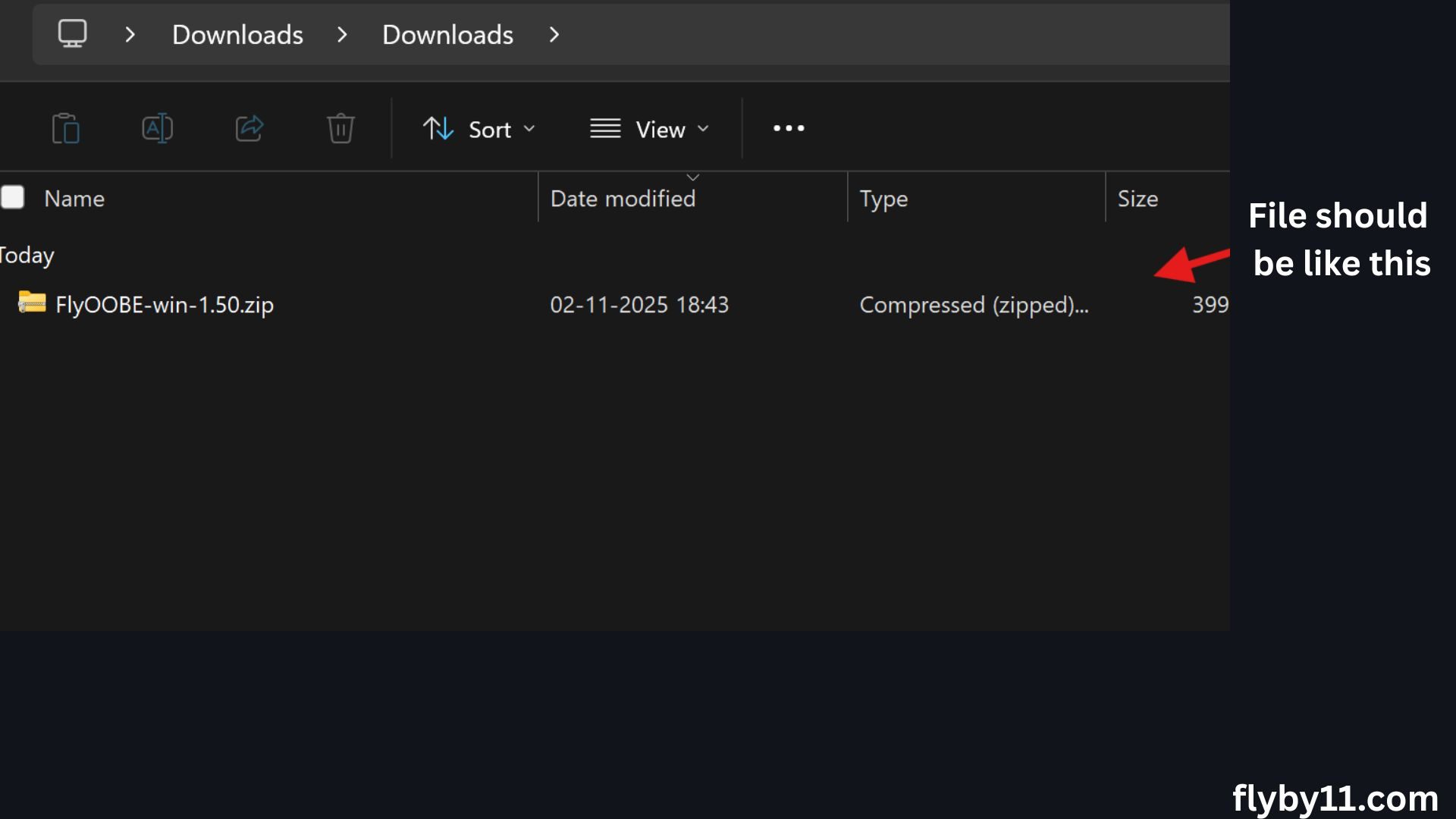
Save the file to an easy-to-find location on your PC.
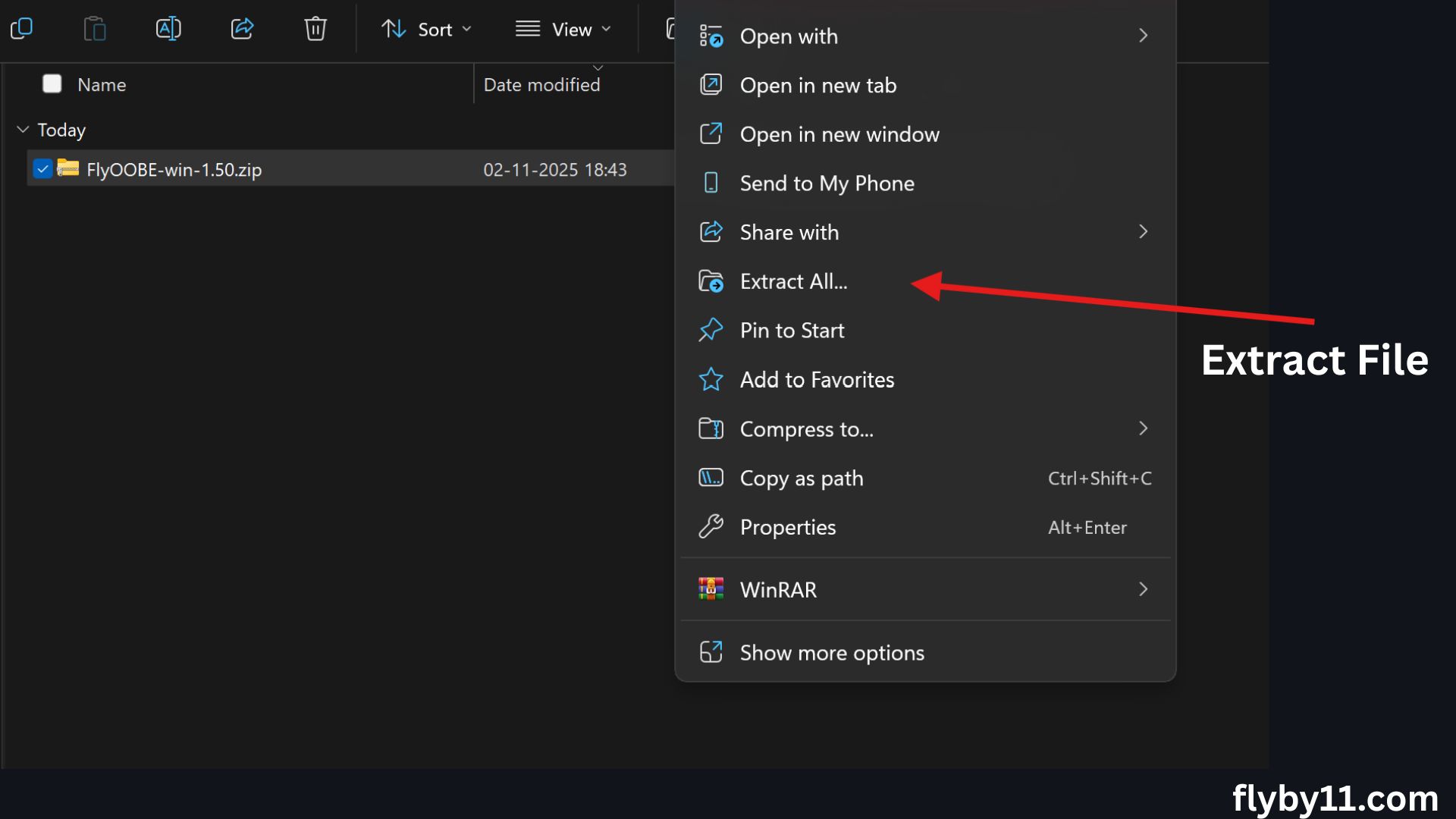
Right-click on the zip file and choose “Extract All” to unzip it into a new folder.
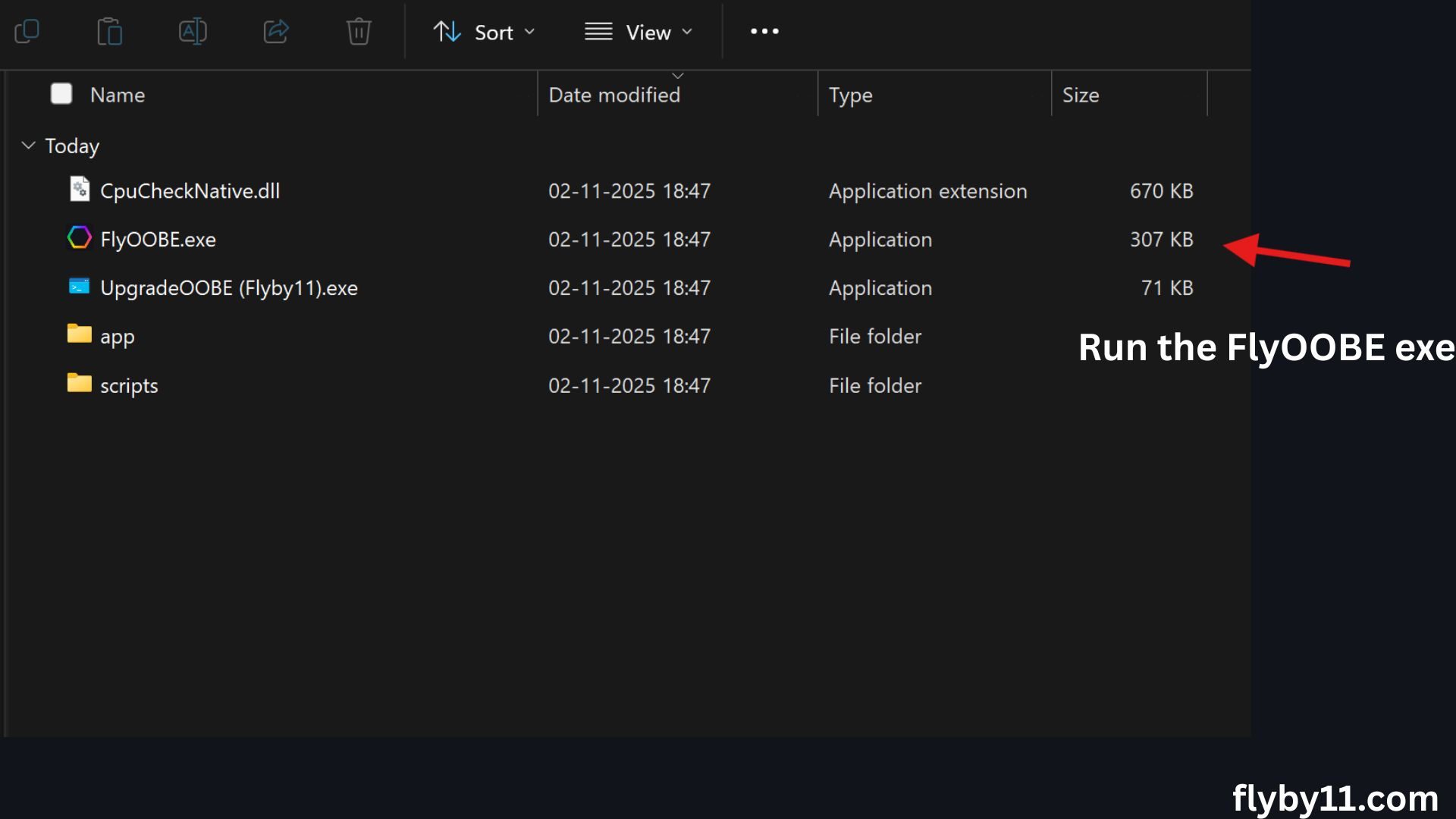
Open the extracted folder and run the file named FlyOOBE.exe.
How to Install Flyoobe / Flyby11?
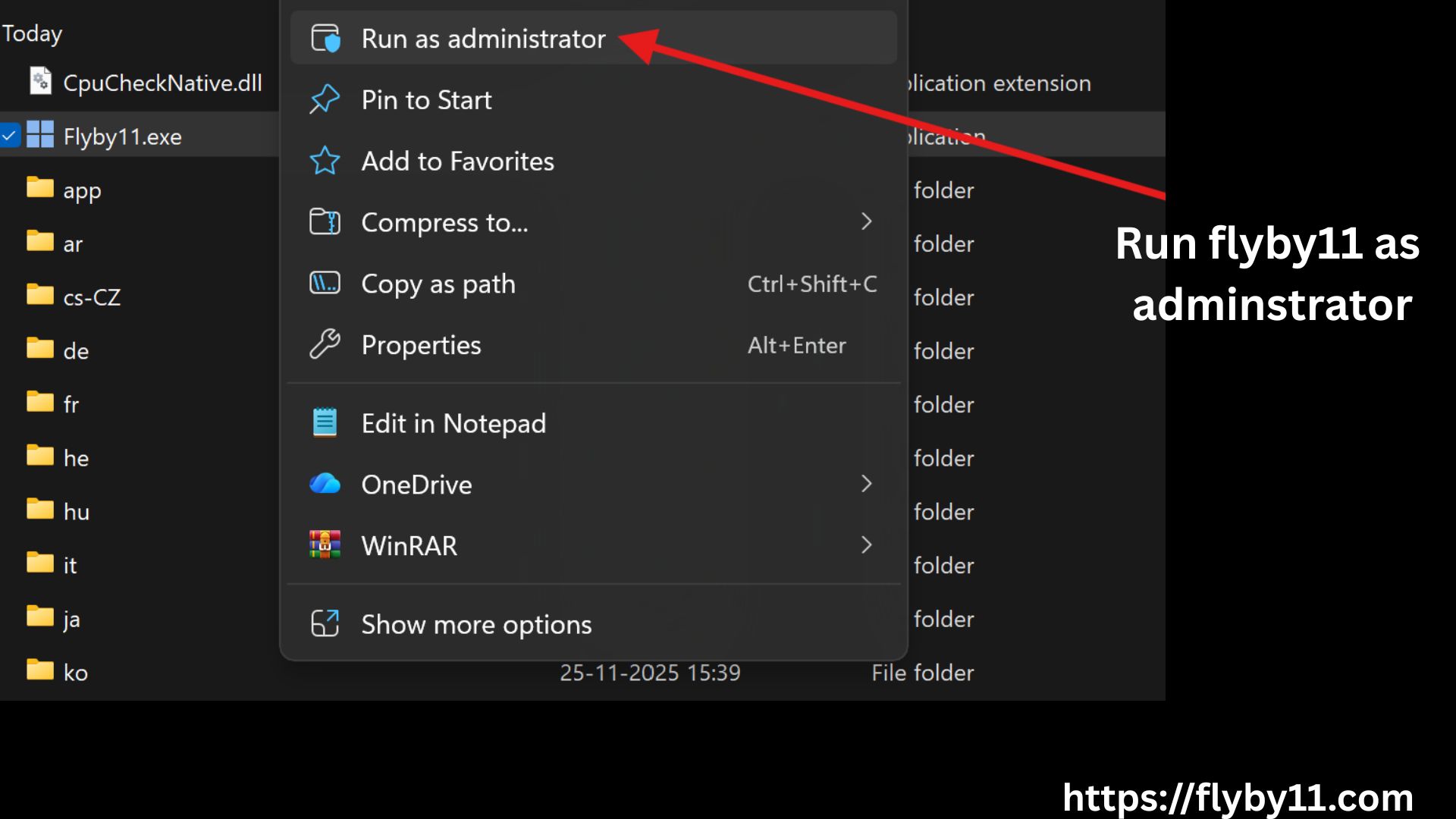
Step 1: Run the file as Administrator
To get the best results, you must run the flyby11 tool as Administrator, especially when dealing with updates and system changes.
Step 2: Windows 11 Update Process
On the Flyoobe home screen, select the “Get Windows 11” or upgrade button.
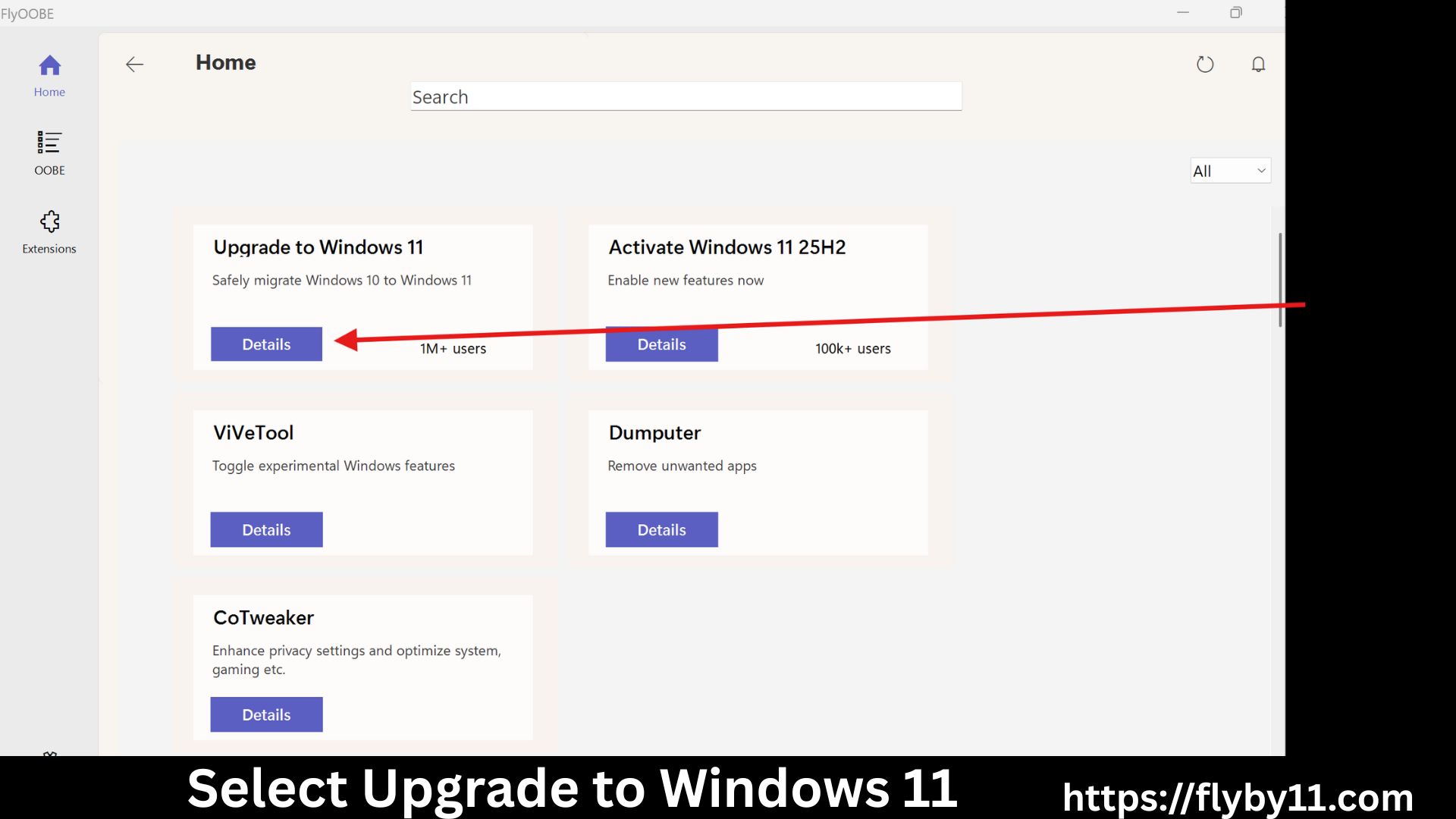
Get the Windows 11 iso file, which is the easiest way to install the Flyoobe tool.
Download the iso from the Microsoft website and select your language.
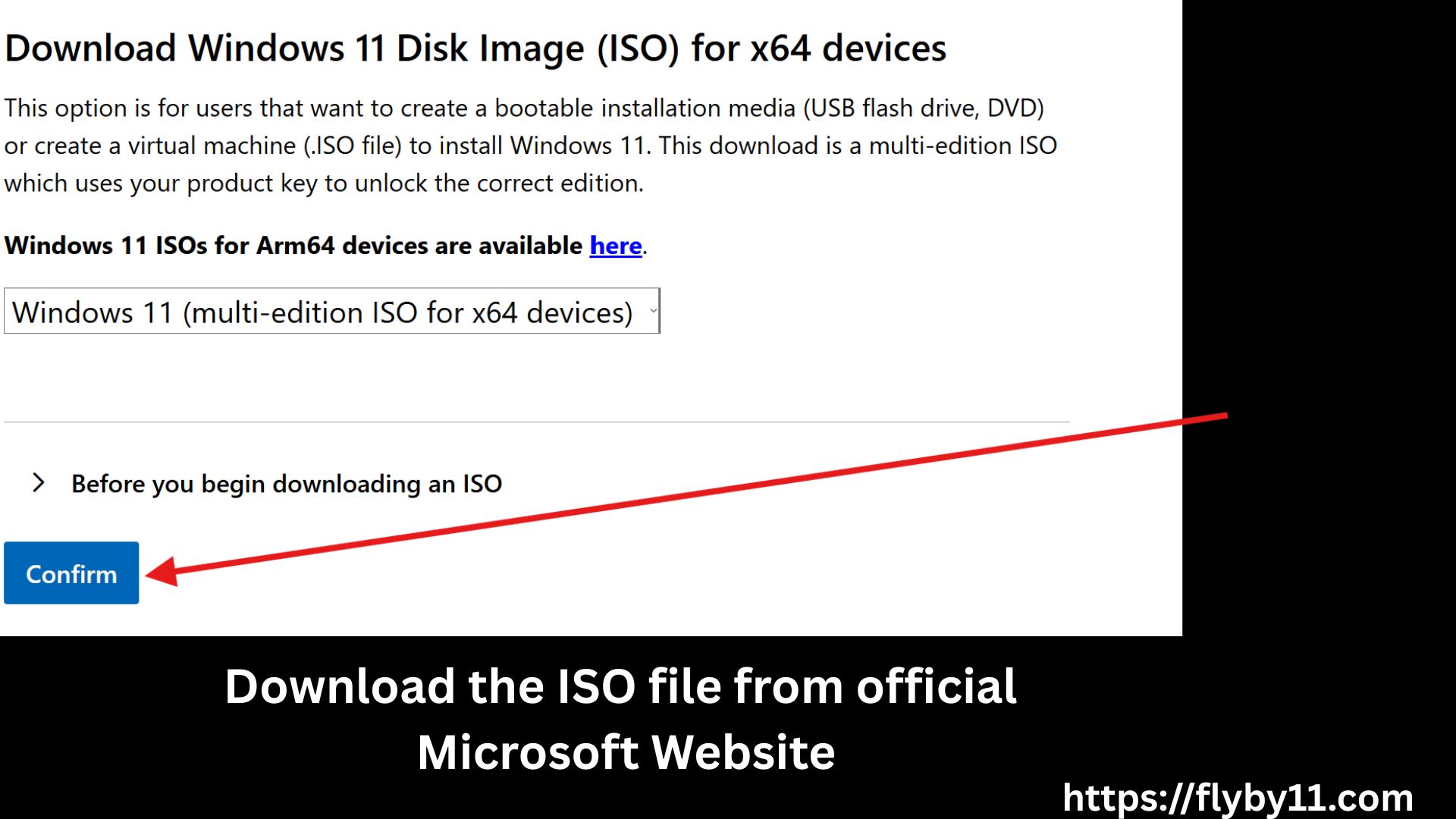
Once the iso file is downloaded, drag and drop it directly into the Flyoobe app to start the installer.
Installation will begin with a special version that skips the hardware requirements.
Follow the instructions in the Windows setup window.
When asked what to keep, select “Keep files, settings, and apps” to save your data.
Click install and the installer will run and the PC will restart automatically to finish Windows 11 set up.
Step 3: OOBE Tweaks (Customization)
You can again run the Flyoobe tool to clean and customize your system while running Windows 11.
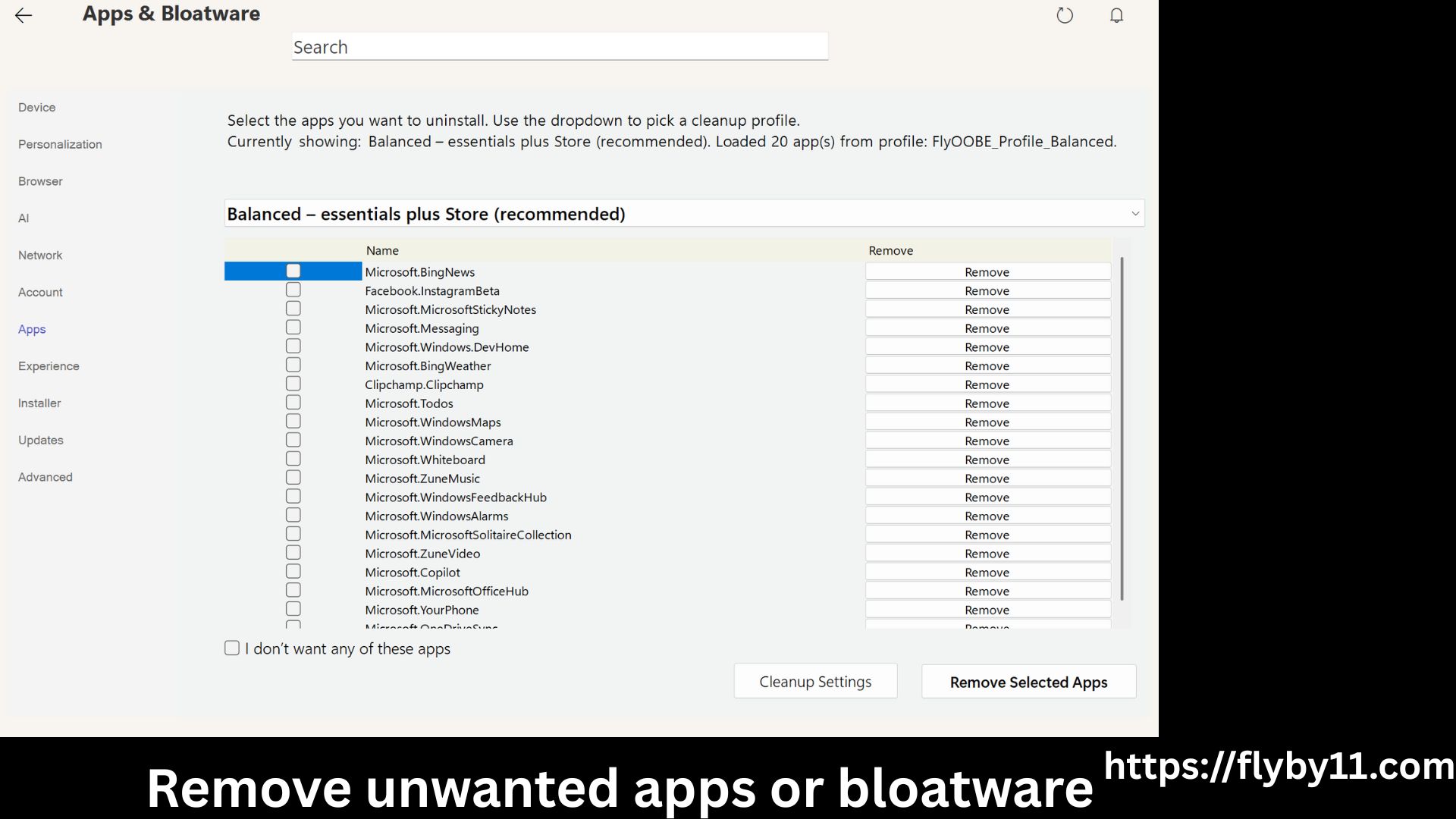
Go to sections like Apps or AI tabs to select and remove unwanted pre-installed programs (bloatware) or turn off Copilot.
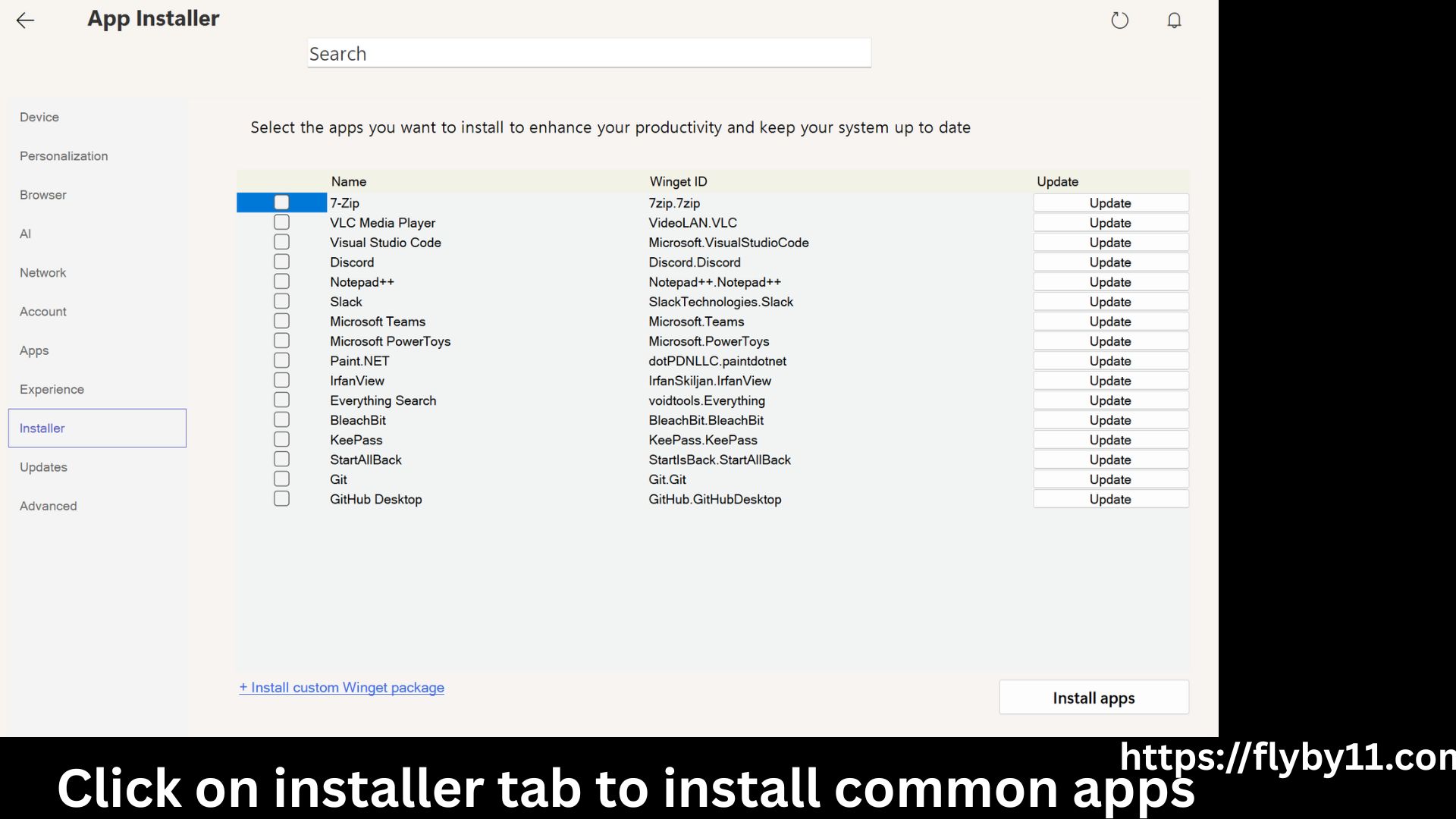
Use the Installer tab to quickly select and install common apps you need.
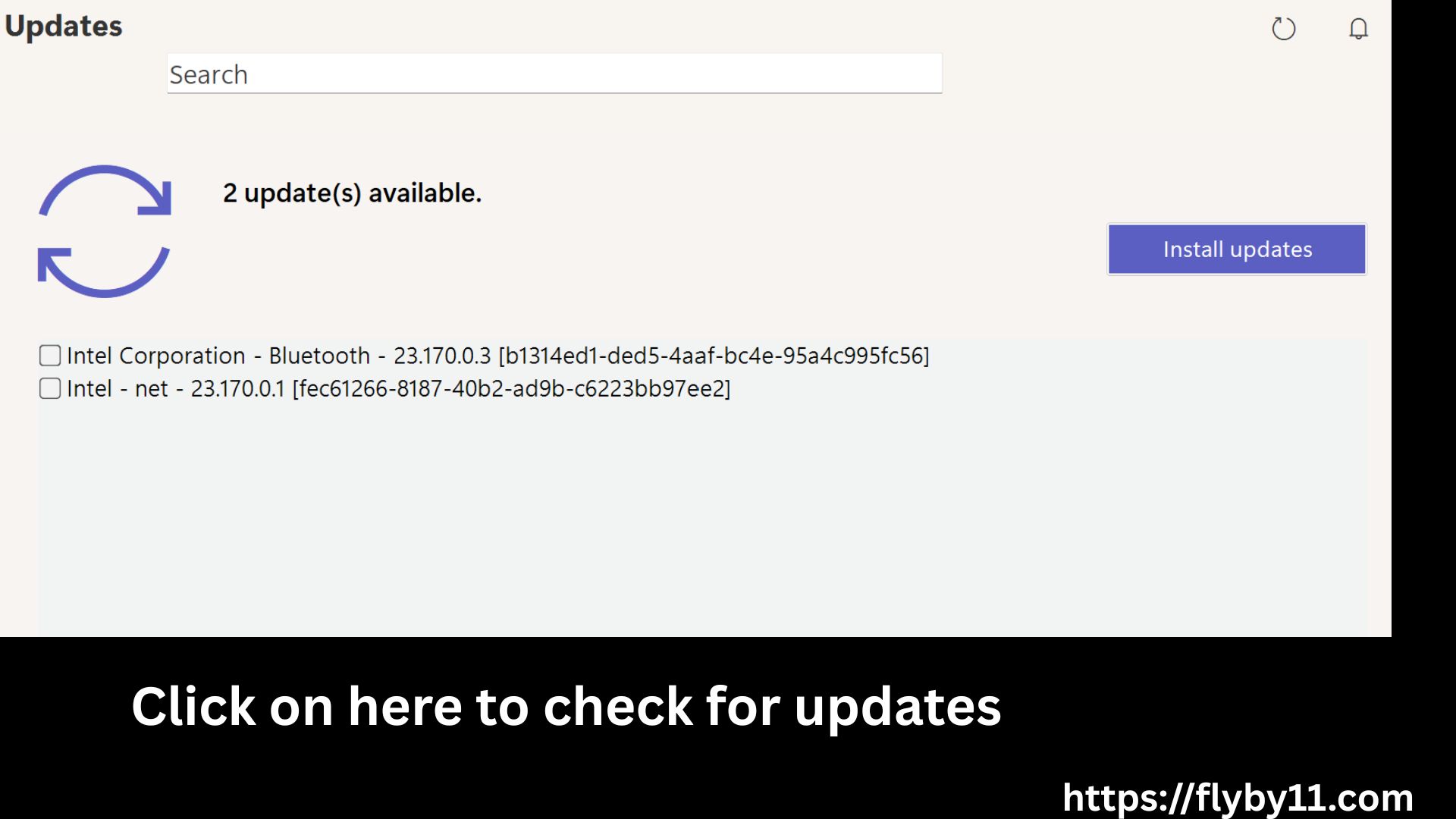
Use the updates tab to check for and install the latest Windows security patches and drivers to make your system up to date.
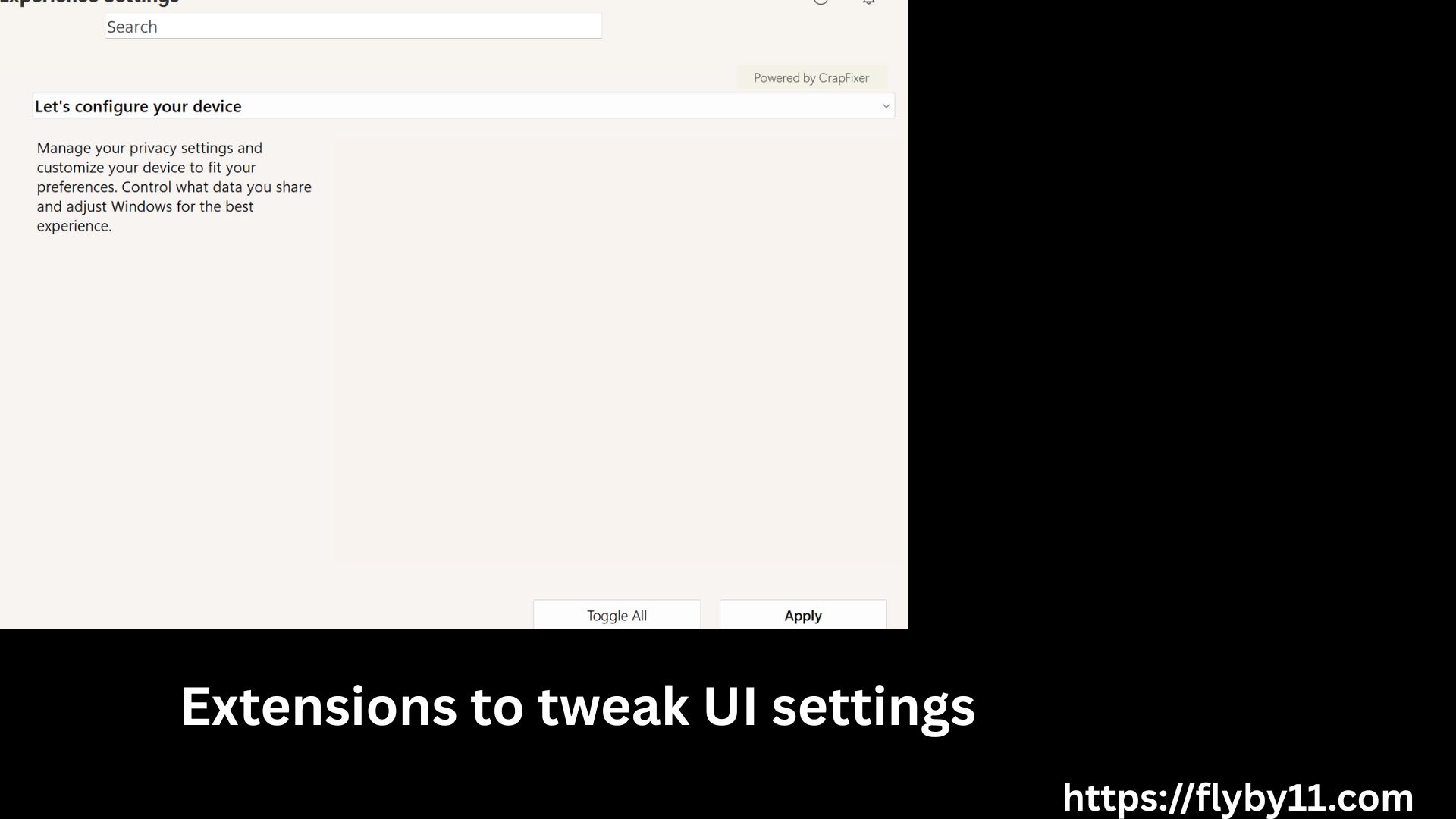
Go to the Experience or Extensions tab to apply different system tweaks such as changing UI settings or getting rid of system ads.
Video Overview
Features in Detail
Simplifies Setup With AutoPilot
Flyby11 / FlyOOBE includes an AutoPilot feature that automatically manages ISO downloads, setup, and mounting making the upgrade process effortless and smooth.
Rollback to Windows 10 (Limited Time)
After upgrading, you can roll back to Windows 10 within 10 days if you prefer the previous system. It’s quick, reversible, and entirely user-controlled.
Winpilot: Guided Setup Assistance
Winpilot acts as an intelligent assistant during setup, guiding you through configurations and suggesting the best settings for your system and usage style.
Bypasses TPM Checks Using Server Mode
FlyOOBE leverages Microsoft’s own Server Installation method to bypass TPM and CPU restrictions ensuring seamless installation even on older hardware.
Clean and Custom Installation Presets
Flyby11 provides several installation profiles from full-featured setups to lightweight gaming builds optimized for performance and simplicity.
Secure In-Place Upgrade System
Flyby11 protects your data during upgrades by safely migrating your files, apps, and settings to the new OS without losing anything important.
Why Should You Use Flyby11?
Simple & Easy to Bypass Windows Requirements
Unlike the older methods of manually editing the Windows Registry or running command-line scripts, Flyoobe automates the entire bypass process safely and efficiently.
Keeps Files and Apps Intact
Flyoobe performs a smooth in-place upgrade from Windows 10 to 11 without requiring you to manually back up or reinstall your applications and personal settings.
Clean & Bloat-Free System
With OOBE customization, you can remove junk apps, disable Copilot/AI, and bypass forced Microsoft Account creation, letting you set up Windows your way.
Extends PC Life
If your Windows 10 PC still runs great but doesn’t meet the upgrade requirements, Flyoobe gives you freedom to upgrade and reduce e-waste by keeping older hardware useful.
Reliable and Safe Upgrade
The Flyoobe tool uses the Windows Server installation variant for hardware bypass a proven, stable method safer than custom scripts or risky registry edits.
Open Source and Community Trusted
Flyoobe is an open-source project supported by a global community of users and developers. Transparency and peer review ensure that the tool remains secure and dependable.
User Reviews
According to PCWorld, FlyOOBE (formerly Flyby11) offers a refreshing way to install Windows 11 on any PC without the unwanted extras. The publication praised its lightweight setup and seamless process that bypasses Microsoft’s hardware checks, making it ideal for older devices that still perform well.
On AskWoody, users highlighted that FlyOOBE’s simple interface and direct installation process are its strongest points. It’s described as a worthy successor to Flyby11, giving users control over what’s installed while ensuring compatibility with systems that Microsoft left behind.
The tech enthusiasts at XDA Developers noted that Flyby11 (now FlyOOBE) provides a clever workaround for Windows 11’s TPM 2.0 and CPU requirements. They emphasize how the tool allows people to upgrade unsupported hardware without sacrificing performance or security.
A user on Reddit shared their experience saying, “Flyby11 is sooo greeeeeeat! It just worked instantly on my old system didn’t expect it to be this easy.” Many others echoed similar satisfaction, especially praising its ability to skip TPM checks and run Windows 11 smoothly on older laptops.
Community & Contributions
⭐ Star the Project
Show your support and help FlyOOBE grow by starring it on GitHub. Every star keeps development strong and active!
Star on GitHub🐞 Report an Issue
Found a bug or something not working right? Report it here and help improve FlyOOBE for everyone.
Report Issue💬 Join Discussions
Have feedback, suggestions, or want to chat with others? Join our GitHub discussions community.
Go to Discussions⚙️ GitHub Actions
See FlyOOBE’s automated workflows in action continuous integration, build pipelines, and more.
View ActionsFrequently Asked Questions
Final Words
Lastly, Flyoobe/Flyby11 is a lifeline for anyone with an older computer or hardware that still works great, but Microsoft doesn’t consider them. You can be frustrated when your completely good computer is considered “obsolete” because it doesn’t have a TPM chip or an older processor.
The Flyoobe tool does exactly what it says, which is that it runs Windows 11 on unsupported devices. And thus, a lot of users have successfully upgraded decade old systems, and a lot of them agreed that their computer works better on Windows 11.
Because it’s free and open source, it makes a big difference. But Microsoft won’t support you if something breaks, and even future updates are not guaranteed. But if you’re comfortable with some technical changes, you can have Flyby11, and it’ll solve all your problems. Just back up your important files and apps to avoid any issues.